

Running a LinkedIn Company Page is easier when the right people have access—and only the right people. Admin roles determine who can publish updates, review analytics, manage settings, or oversee paid media. When these permissions are handled well, your Page stays secure, consistent, and aligned with your brand. When they’re not, you risk confusion, lost access, or even reputational damage.
This guide walks through how LinkedIn Company Page admin roles work, how to add or remove admins, and how to manage access with confidence.
Why admin roles matter for your LinkedIn Company Page
Admin access shapes how your Page operates day to day. It affects who can post, who can edit, and who can make decisions that represent your brand. A clear structure prevents accidental changes, reduces security risks, and keeps your Page running smoothly.
Understanding LinkedIn Company Page admin roles
Below is an expanded, richer, more detailed version of Understanding LinkedIn Company Page admin roles, grounded in the latest available information from LinkedIn’s official documentation and reputable sources. Citations appear at the end of relevant paragraphs.

Understanding LinkedIn Company Page admin roles
LinkedIn Company Pages use a tiered permission system that separates publishing, analytics, Page management, and advertising access. This structure helps organizations control who can make changes, who can publish LinkedIn content, and who can run paid campaigns. LinkedIn divides these into two broad categories: Page admin roles and paid media admin roles.
What each LinkedIn admin role can do
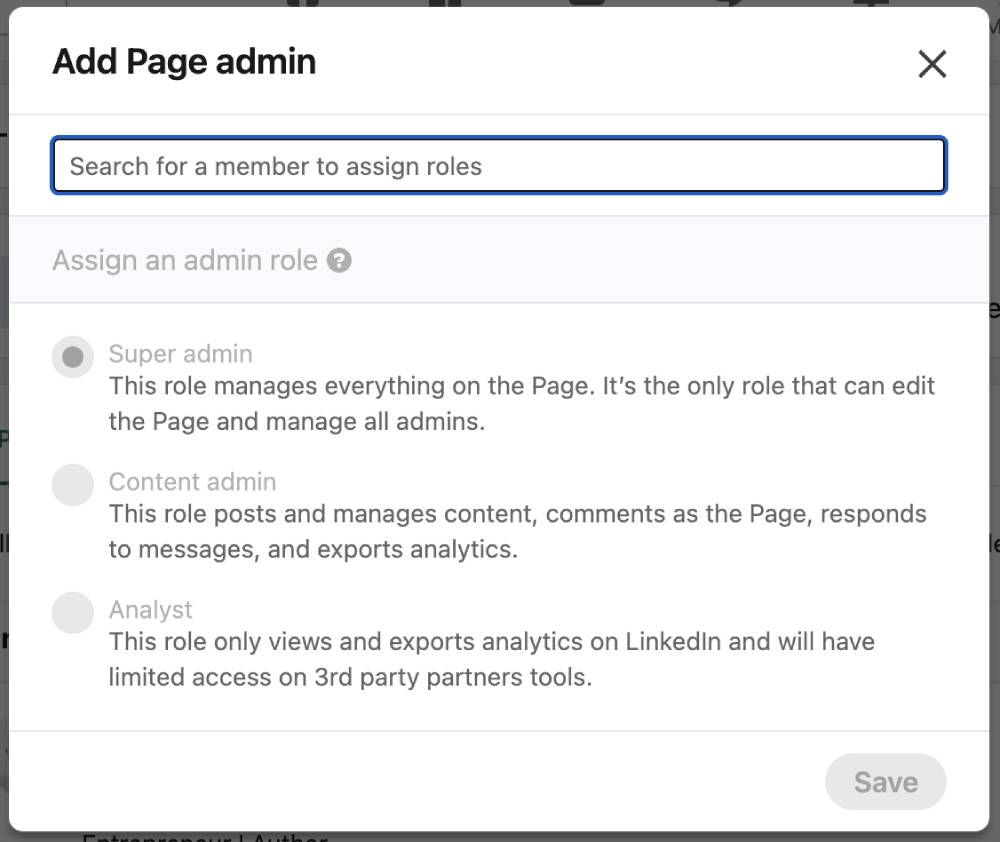
Super admin
This is the highest‑level role and includes every available permission. A super admin can add or remove any type of admin, edit Page information, create job postings, manage settings, and even deactivate the Page. This role also controls who gains access, since only super admins can approve or assign admin roles.
Content admin
Content admins handle the day‑to‑day publishing and engagement activity. They can create LinkedIn posts, respond to comments, manage community interactions, and oversee the Page’s content calendar. They cannot modify Page settings or add/remove admins. This role is ideal for marketing and social media teams. (Inference based on LinkedIn’s role definitions.)
Analyst
Analysts have read‑only access to analytics. They can view performance metrics, audience insights, and engagement data, but cannot publish or edit anything. This role is useful for leadership, reporting teams, or agencies that need visibility without editing rights. (Inference based on LinkedIn’s role definitions.)
Paid media admin roles
Paid media admins operate through Campaign Manager or LinkedIn Recruiter. They can run ads, manage budgets, and create campaigns on behalf of the Page. LinkedIn allows a member to hold both Page admin and paid media admin roles at the same time, which is helpful when one person manages both organic and paid activity.
When to assign each admin role
Most organizations benefit from a lean admin structure. Research‑based guidance suggests that many Pages run smoothly with two to three core admins, while the rest of the team works as content creators or analysts. This avoids permission sprawl and reduces security risks.
A practical framework:
- Super admin: Senior marketing lead, brand owner, or trusted internal stakeholder
- Content admin: Social media managers, content creators, community managers
- Analyst: Leadership, reporting teams, external consultants
- Paid media admin: Performance marketers, agencies running ads
This structure keeps control centralized while still enabling collaboration.
Why LinkedIn uses a tiered admin system
LinkedIn’s admin roles are designed to improve security and reduce the risk of unauthorized changes. By separating Page management from content publishing and advertising access, LinkedIn helps organizations maintain accountability and protect their brand presence. This tiered system also supports compliance and reduces the chance of accidental errors.
How admin roles support brand governance
A well‑structured admin setup ensures:
- Clear accountability for who can publish or edit
- Reduced risk of unauthorized Page changes
- Better control over brand voice and messaging
- Safer collaboration with agencies or contractors
- Easier onboarding and offboarding
These governance benefits are especially important for companies with distributed teams or multiple stakeholders.
How LinkedIn’s evolving admin roles offer more flexibility
LinkedIn has expanded its admin role options over time to give organizations more granular control. This includes new internal access tiers and improved separation between Page admin and paid media admin permissions. These updates help businesses tailor access more precisely to their workflows.
Assign roles based on responsibility, not convenience. Marketing teams may need content access, while leadership may only need analytics. Agencies often require temporary or limited permissions.
How to add an admin to your LinkedIn Company Page
Requirements before adding an admin
LinkedIn requires a few conditions before someone can be added:
- You must be a super admin.
- The person must follow your Page.
- They must be a 1st, 2nd, or 3rd‑degree connection.
- Their account must be in good standing.
Steps to add an admin
- Open your Page in super admin view.
- Select Settings, then Manage admins.
- Choose either Page admins or Paid media admins.
- Select Add admin and search for the person’s name.
- Assign the appropriate role and save.
A notification is sent to the new admin once the role is active.
Governance best practices when adding admins
Before granting access, confirm the person’s role, responsibilities, and expected duration of access. Keep a simple internal record of who has permissions and why. This prevents confusion later and supports clean handovers.
How to remove an admin from your LinkedIn Company Page
When you should remove admin access
Admin access should be removed when:
- Someone leaves the company
- An agency contract ends
- A role changes
- There’s a security concern
- An admin becomes inactive
Steps to remove an admin
- Go to Manage admins in your Page settings.
- Locate the person in the admin list.
- Select their role and remove access.
- Confirm the change.
Once removed, they lose the ability to publish, edit, or view analytics.
Security considerations when removing admins
If someone leaves unexpectedly or access becomes risky, remove permissions immediately. Follow up by reviewing passwords, shared tools, and any connected systems.
How to manage admin roles effectively
How to change an admin’s role
Roles can be upgraded or downgraded at any time. This is helpful when responsibilities shift or when you want to tighten access without removing someone entirely.
How to audit your admin list
A quarterly review is a simple way to keep your Page secure. Look for:
- Duplicate roles
- Outdated access
- Inactive admins
- External partners who no longer need access
How to manage external partners and agencies
Agencies often need temporary access. Set clear start and end dates, and remove access as soon as the engagement ends. This keeps your Page clean and reduces long‑term risk.
Advanced admin management strategies
How to structure admin roles for different team types
A well‑designed admin structure keeps your Page stable even as your team grows or shifts. The right setup depends on how your organization works, how often you publish, and how many people touch your LinkedIn presence.
Small businesses
Smaller teams usually benefit from a simple setup. One super admin handles ownership and settings, while a content admin manages posting and engagement. This keeps control tight without slowing down day‑to‑day activity.
Mid‑size teams
As teams expand, responsibilities start to split. You may have a marketing manager overseeing strategy, a social media specialist handling publishing, and a leader or analyst reviewing performance. In this case, one super admin, two content admins, and one analyst create a balanced structure that supports collaboration without giving everyone full control.
Enterprise organizations
Larger companies often need redundancy and clear separation of duties. Multiple super admins prevent lockouts if someone leaves. Content admins may be grouped by region, product line, or business unit. Analysts can be assigned to leadership, communications, or performance teams. This structure supports scale while maintaining accountability.
Multi‑brand or multi‑location companies
If your organization manages several Pages, consider assigning super admins at the corporate level and content admins at the local level. This keeps brand standards consistent while giving local teams the freedom to publish relevant updates.
How to maintain security and compliance
LinkedIn Pages often represent a company’s public identity, so access must be handled with the same care as any other digital asset. A few simple habits can significantly reduce risk.
Use role‑based access control (RBAC)
Assign permissions based on what someone needs to do—not their seniority or convenience. This prevents accidental changes and limits exposure if an account is compromised.
Keep super admin access limited
Super admin rights should be reserved for a small, trusted group. Too many super admins increase the chance of unauthorized edits or accidental deactivation.
Use two‑person approval workflows for sensitive updates
For major announcements, leadership changes, or crisis communications, require a second set of eyes before publishing. This can be done informally through internal messaging tools or through a documented workflow.
Review access after staffing changes
When someone changes roles, leaves the company, or moves to a different team, update their permissions immediately. Delayed offboarding is one of the most common sources of security issues.
How to integrate admin roles with your content workflow
Admin roles work best when they support—not hinder—your publishing process. A clear workflow helps your team move quickly while keeping your Page consistent and secure.
Separate creators from approvers
Content admins can draft and publish posts, but you may want super admins or senior marketers to approve major updates. This creates a natural quality‑control layer without slowing down routine content.
Use analysts to support reporting without granting publishing access
Analysts can pull performance data, track trends, and prepare reports for leadership. This keeps your content team focused on creation while ensuring decision‑makers have the insights they need.
Avoid bottlenecks by distributing responsibilities
If only one person can publish, your Page may go quiet when they’re unavailable. Assign at least two content admins so publishing continues smoothly.
Document your workflow
Even a simple one‑page outline helps new team members understand who does what. This reduces confusion and keeps your Page running consistently.
How to manage agencies and external partners
Many companies work with agencies for content creation, advertising, or LinkedIn analytics. Admin roles make it easy to collaborate without giving away full control.
Give agencies the minimum access required
If an agency only handles ads, assign them a paid media admin role. If they create content, give them content admin access but keep super admin rights internal.
Set clear access timelines
When a contract ends, remove access immediately. This protects your Page and prevents accidental publishing.
Use shared documentation for handovers
If an agency manages your content calendar or analytics, ask them to document their process before the engagement ends. This helps your internal team pick up where they left off.
How to future‑proof your admin structure
LinkedIn continues to evolve its admin tools, and your team will evolve too. A future‑proof setup keeps your Page stable even as people come and go.
- Keep at least two active super admins to avoid lockouts
- Review admin roles quarterly
- Maintain a simple internal record of who has access and why
- Train new admins before giving them permissions
- Use temporary access for short‑term projects
These habits help your LinkedIn company page stay secure, consistent, and easy to manage over time.
Troubleshooting common admin access issues
Even when everything is set up correctly, LinkedIn admin access can break in ways that feel confusing or inconsistent. Most issues fall into a few predictable categories: eligibility problems, account‑level restrictions, UI glitches, or outdated permissions. Understanding the root cause makes it much easier to fix.
Why you can’t add someone as an admin
This is one of the most common problems, and it usually comes down to LinkedIn’s built‑in eligibility rules.
They haven’t followed your Page
LinkedIn requires the person to follow the Page before they can be added. If they just clicked “Follow,” ask them to refresh their browser or mobile app.
You’re not a super admin
Only super admins can assign roles. Content admins and analysts can’t add anyone, even if they can see the admin panel.
Their account has restrictions
If LinkedIn has flagged their account for unusual activity, missing verification, or identity checks, they may be temporarily blocked from being added.
They’re outside your network visibility
LinkedIn allows adding 1st, 2nd, and 3rd‑degree connections, but sometimes privacy settings or account visibility can interfere. If you can’t find them in search, ask them to send you a connection request.
Their name isn’t appearing in the admin search bar
This is often a caching issue. Have them:
- Follow the Page
- Log out and back in
- Refresh their feed
Then try again.
Why someone can’t see admin tools
Sometimes a person is an admin, but the admin tools simply don’t appear. This usually points to a mismatch between their assigned role and what they expect to see.
The role wasn’t assigned correctly
If they were added as an analyst, they won’t see publishing tools. If they were added as a paid media admin, they won’t see Page settings. Double‑check the role in the admin list.
They’re logged into the wrong account
Many people have multiple LinkedIn accounts without realizing it. If they’re logged into an old or secondary account, they won’t see admin access.
LinkedIn hasn’t refreshed their permissions
LinkedIn sometimes takes a few minutes to update access. A browser refresh or logging out and back in usually fixes it.
They’re using the mobile app
LinkedIn’s mobile app doesn’t always display the full admin interface. If something looks missing, switch to desktop.
Browser extensions are interfering
Ad blockers, privacy extensions, and script blockers can hide admin buttons. Try an incognito window or a different browser.
Why admin access requests get stuck in pending
LinkedIn occasionally stalls admin requests, especially when the person being added has unusual privacy settings or hasn’t interacted with the Page before.
The person hasn’t accepted the request
Admin invitations don’t always trigger a notification. Ask them to check their LinkedIn notifications manually.
The request was sent to the wrong account
If they have multiple accounts, the request may be sitting in the one they don’t use.
The request expired
LinkedIn sometimes expires pending requests without warning. Cancel the request and send a new one.
LinkedIn’s identity checks are blocking the request
If LinkedIn is asking the user to verify their identity, they must complete that step before the admin request can be approved.
How to fix a stuck request
- Cancel the request
- Refresh the admin panel
- Re‑send the invitation
If it still doesn’t go through, the user may need to update their profile visibility or follow the Page again.
What to do when admin access suddenly disappears
This can happen after role changes, account issues, or LinkedIn updates.
Their role was accidentally changed or removed
Another super admin may have updated the admin list without realizing it.
Their account was restricted
LinkedIn sometimes restricts accounts for spam‑like behavior, login anomalies, or incomplete verification.
They unfollowed the Page
Rare, but it happens. If they unfollow the Page, some admin features may not load correctly.
LinkedIn UI updates
LinkedIn frequently updates its interface. Admin tools may move, change labels, or appear in new menus.
When to contact LinkedIn support
Most issues can be fixed internally, but you should escalate when:
- All super admins lose access
- A Page owner leaves the company and no one else has super admin rights
- Admin roles keep disappearing
- The Page is stuck in a restricted or locked state
- You suspect a security breach
LinkedIn will ask for verification, so be prepared to provide business documentation or proof of ownership.
Frequently asked questions about LinkedIn Company Page admin roles
How many admins can a LinkedIn Company Page have
LinkedIn doesn’t publish a strict limit, but Pages can support a large number of admins without issue. The real constraint is governance. Most organizations run best with a lean structure—typically two super admins, a few content admins, and one or two analysts. If you’re unsure how to structure your team, explore admin role strategies for guidance.
Do admins need to be employees
No. LinkedIn allows contractors, agencies, and external partners to serve as admins as long as they follow the Page and meet eligibility requirements. Many companies give agencies temporary content admin or paid media admin access during campaigns. If you’re working with external partners, review admin access for agencies to keep things secure.
Can someone be both a Page admin and a paid media admin
Yes. LinkedIn treats Page admin roles and Campaign Manager roles as separate permission systems. A single person can publish posts, manage comments, and run ads if needed. This is common in smaller teams where one person handles both organic and paid activity.
Can you assign admin roles from the LinkedIn mobile app
LinkedIn’s mobile app supports some admin functions, but not all. You can view admin tools, publish posts, and respond to comments, but assigning or removing admins is more reliable on desktop. If admin tools aren’t appearing on mobile, check admin visibility issues.
Why can’t I find someone when trying to add them as an admin
This usually happens when the person hasn’t followed the Page, has privacy settings that limit visibility, or is using an account with restricted activity. Ask them to follow the Page, refresh their browser, and confirm they’re logged into the correct account. If the issue persists, review troubleshooting admin access.
What happens if all super admins leave the company
If no super admins remain, the Page becomes effectively locked. You’ll need to contact LinkedIn support and provide proof of business ownership—such as a company email, domain verification, or legal documentation. This process can take time, which is why every Page should maintain at least two active super admins.
Can admins see who viewed the Page
No. Admins can see aggregated analytics—such as visitor demographics, job titles, and engagement trends—but they cannot see individual profile views. This applies to all admin roles, including super admins.
Do admins get notified when someone else posts on the Page
LinkedIn does not send automatic notifications for every Page post. Admins typically see Page activity in their feed or in the Page’s admin view. If you need structured oversight, consider using a content calendar or approval workflow outside LinkedIn.
Can an admin delete another admin’s post
Yes. Any content admin or super admin can edit or delete posts published by other admins. Analysts cannot. If you want tighter control over publishing, explore content workflow structures.
Can you track which admin published a specific post
LinkedIn does not publicly display the name of the admin who published a post. However, admins can see this information internally in the Page’s admin view. This helps with accountability without exposing individual team members publicly.
Can you restrict admins from replying to comments
No. If someone is a content admin, they can publish posts and respond to comments. If you want someone to monitor analytics only, assign them the analyst role instead.
Can you assign admin roles to someone who isn’t connected to you
Yes. They do not need to be a 1st‑degree connection, but they must follow the Page and be discoverable in LinkedIn’s search. If their name doesn’t appear, it’s usually a visibility or caching issue.
Do admin roles affect personal profile visibility
No. Being an admin does not change how your personal profile appears to others. Admin roles only affect what you can do on the Company Page.
Conclusion
Managing admin roles on your LinkedIn Company Page isn’t just a technical task—it’s a core part of protecting your brand, shaping your workflow, and keeping your team aligned. When the right people have the right level of access, everything runs smoother. Content gets published on time. Analytics stay accurate. Security risks drop. And your Page becomes a reliable extension of your organization rather than a point of friction.
A strong admin structure also gives your team room to grow. As responsibilities shift, campaigns evolve, or new partners come on board, you can adjust roles without disrupting your presence. The key is staying intentional: review your admin list regularly, document who has access and why, and keep super admin permissions limited to a trusted few. These small habits create long‑term stability.
If you’re building a more mature LinkedIn strategy, this is the foundation. Once your admin roles are set, you can focus on the work that actually moves the needle—publishing stronger content, improving engagement, and refining your analytics. You can explore deeper topics like advanced admin strategies or troubleshoot issues with confidence using the guidance in common admin access issues.
A well‑managed Page doesn’t happen by accident. It’s the result of clear roles, consistent oversight, and a structure that supports your team rather than slowing it down. When you get this part right, everything else becomes easier.